Email Notifications
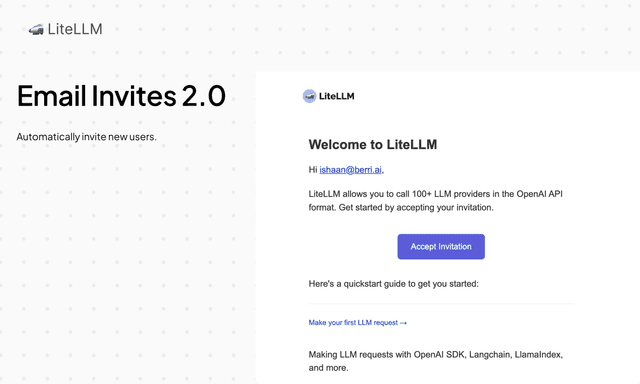
LiteLLM Email Notifications
Overview
Send LiteLLM Proxy users emails for specific events.
| Category | Details |
|---|---|
| Supported Events | • User added as a user on LiteLLM Proxy • Proxy API Key created for user • Proxy API Key rotated for user • Virtual key approaching or crossing its budget • Virtual key about to expire |
| Supported Email Integrations | • Resend API • SendGrid API • SMTP |
Usage
1. Configure email integration
- SMTP
- Resend API
- SendGrid API
Get SMTP credentials to set this up
litellm_settings:
    callbacks: ["smtp_email"]
Add the following to your proxy env
SMTP_HOST="smtp.resend.com"
SMTP_TLS="True"
SMTP_PORT="587"
SMTP_USERNAME="resend"
SMTP_SENDER_EMAIL="notifications@alerts.litellm.ai"
SMTP_PASSWORD="xxxxx"
Add resend_email to your proxy config.yaml under litellm_settings
set the following env variables
RESEND_API_KEY="re_1234"
litellm_settings:
    callbacks: ["resend_email"]
Add sendgrid_email to your proxy config.yaml under litellm_settings
set the following env variables
SENDGRID_API_KEY="SG.1234"
SENDGRID_SENDER_EMAIL="notifications@your-domain.com"
litellm_settings:
  callbacks: ["sendgrid_email"]
2. Create a new user
On the LiteLLM Proxy UI, go to users > create a new user.
After creating a new user, they will receive an email invite a the email you specified when creating the user.
3. Configure Budget Alerts (Optional)
Enable budget alert emails by adding "email" to the alerting list in your proxy configuration:
general_settings:
  alerting: ["email"]
Budget Alert Types
Soft Budget Alerts: Automatically triggered when a key exceeds its soft budget limit. These alerts help you monitor spending before reaching critical thresholds.
Max Budget Alerts: Automatically triggered when a key reaches a specified percentage of its maximum budget (default: 80%). These alerts warn you when you're approaching budget exhaustion.
Both alert types send a maximum of one email per 24-hour period to prevent spam.
Per-key thresholds and recipients
By default a max budget alert fires at one threshold and goes only to the email of the user who owns the key, so a key with no owner email sends nothing. To choose your own thresholds and notify additional people, set max_budget_alert_emails in the key's metadata. Each entry maps a percentage of that key's max_budget to the recipients notified once spend crosses it.
curl -X POST 'http://0.0.0.0:4000/key/generate' \
  -H "Authorization: Bearer $LITELLM_API_KEY" \
  -H 'Content-Type: application/json' \
  -d '{
    "max_budget": 100,
    "metadata": {
      "max_budget_alert_emails": {
        "50": ["owner@your-company.com"],
        "75": ["owner@your-company.com", "finance@your-company.com"],
        "100": ["oncall@your-company.com"]
      }
    }
  }'
With the key above, spend of $50 emails the owner, $75 emails the owner and finance, and $100 emails on-call. Recipients can be a list or a comma separated string, and the key owner's email is always included alongside whoever you configure. Each threshold sends at most one email per key per EMAIL_BUDGET_ALERT_TTL. A 100% threshold still fires on the request that exhausts the budget, because the alert check runs before the request is rejected.
Configuring max_budget_alert_emails on a key replaces the default 80% alert for that key. To change thresholds on an existing key, send the same metadata block to /key/update.
There is no UI field for this yet, so set it through /key/generate or /key/update.
Team member budget thresholds and recipients
Teams that set team_member_budget cap what each member can spend inside that team, and by default nothing is emailed before or when a member hits the cap. To alert on a member's budget, set team_member_max_budget_alert_emails in the team's metadata. Each entry maps a percentage of team_member_budget to the extra recipients notified once that member's spend in the team crosses it.
curl -X POST 'http://0.0.0.0:4000/team/update' \
  -H "Authorization: Bearer $LITELLM_API_KEY" \
  -H 'Content-Type: application/json' \
  -d '{
    "team_id": "my-team",
    "team_member_budget": 100,
    "metadata": {
      "team_member_max_budget_alert_emails": {
        "50": [],
        "100": ["finance@your-company.com"]
      }
    }
  }'
With the team above, a member who has spent $50 of their $100 budget gets an email, and at $100 both the member and finance get one. The member's own email (from their user record) is always included, so an empty list means only the member is notified, and a member with no email on file gets nothing while the configured recipients still do. Alerts fire once per member, per team, per threshold within EMAIL_BUDGET_ALERT_TTL, and the 100% alert is sent on the request that exhausts the budget, before that request is rejected. Once spend reaches the lowest configured threshold, Slack and webhook destinations also get a Team Member Budget event for that member at the fixed points other budget types use (15% and 5% remaining, and budget crossed), with event_group set to team_member.
The same block is available in the Admin UI under the team's Team Member Settings, and /team/new accepts it in metadata as well. Invalid entries, such as a threshold that is not a whole number from 1 to 100, are ignored.
Default thresholds for every key
Set default_key_max_budget_alert_emails to apply a baseline to all keys. Per-key entries merge into the global config one threshold at a time, so a key inherits the global recipients for a threshold and adds its own on top rather than overwriting them.
general_settings:
  alerting: ["email"]

litellm_settings:
  default_key_max_budget_alert_emails:
    "80": ["platform-team@your-company.com"]
Configuration Options
Customize budget alert behavior using these environment variables:
# Percentage of max budget that triggers alerts (as decimal: 0.8 = 80%)
# Only applies to keys without max_budget_alert_emails configured
EMAIL_BUDGET_ALERT_MAX_SPEND_ALERT_PERCENTAGE=0.8

# Time-to-live for alert deduplication in seconds (default: 24 hours)
EMAIL_BUDGET_ALERT_TTL=86400
4. Configure Key Expiry Alerts (Optional)
Since v1.111.0Key expiry alerts email a key's owner once before the key expires, so they can regenerate it in time. They need an Enterprise license, a database, and one of the email integrations above. The event is off by default. To turn it on, open Email Settings in the Admin UI, turn on Virtual Key Expiring under Email events and save, or send the same change to PATCH /email/event_settings.
Then set how many days ahead to warn:
general_settings:
  key_expiry_alert_days: 7
key_expiry_alert_days applies to every key that has an expiry date and an owner with an email, including keys created before you set it. The owner gets one email when the key has that many days or fewer left. The proxy reads the value on each run, so a change through the Admin UI or /config/field/update applies without a restart.
To use a different window for one key, set key_expiry_alert_days in its metadata. This also works when the global value is unset, so you can opt in single keys.
curl -X POST 'http://0.0.0.0:4000/key/generate' \
  -H "Authorization: Bearer $LITELLM_API_KEY" \
  -H 'Content-Type: application/json' \
  -d '{
    "user_id": "owner-user-id",
    "duration": "30d",
    "metadata": {"key_expiry_alert_days": 3}
  }'
Both values must be a whole number from 1 to 365. /key/generate and /key/update return a 400 for anything else, and an invalid global value is logged and ignored while per-key values keep working.
The email goes only to the user_email of the key's user_id, so a key with no owner, an owner without an email, or a blocked key gets nothing. It shows the key alias, or a shortened key name when there is no alias, and never the key itself. It also gives the expiry time in UTC, the days left, and a link to the dashboard at PROXY_BASE_URL. The subject is LiteLLM: Virtual Key Expiring. Changing a key's expiry or its day count arms one new email for the new value.
The check runs every 12 hours by default, so an email can arrive up to one interval after a key enters its window. Set LITELLM_KEY_EXPIRY_ALERT_CHECK_INTERVAL_SECONDS to change that. When the proxy uses Redis, one pod runs each check and a shared claim per key stops duplicate emails across pods.
Email Templates
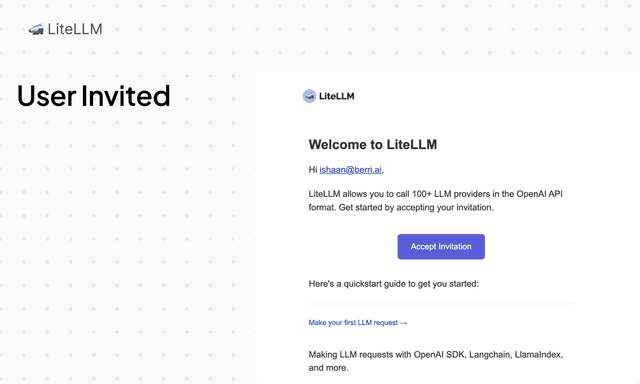
1. User added as a user on LiteLLM Proxy
This email is send when you create a new user on LiteLLM Proxy.
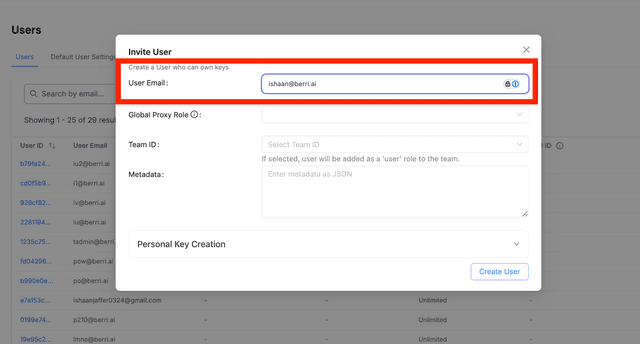
How to trigger this event
On the LiteLLM Proxy UI, go to Users > Create User > Enter the user's email address > Create User.
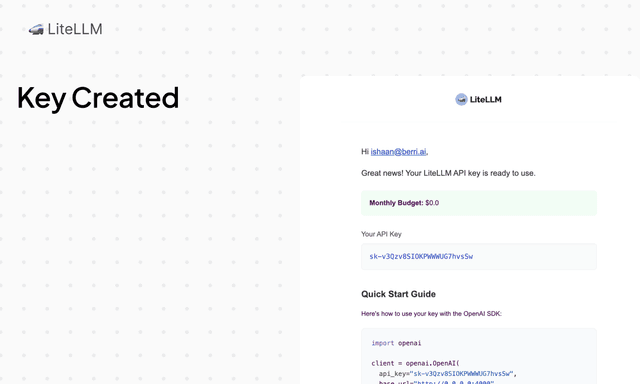
2. Proxy API Key created for user
This email is sent when you create a new API key for a user on LiteLLM Proxy.
How to trigger this event
On the LiteLLM Proxy UI, go to Virtual Keys > Create API Key > Select User ID
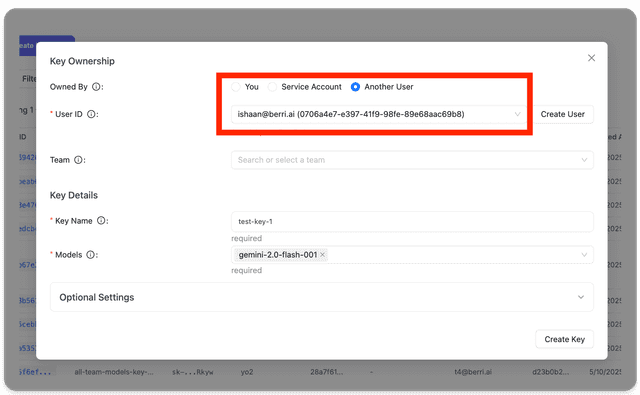
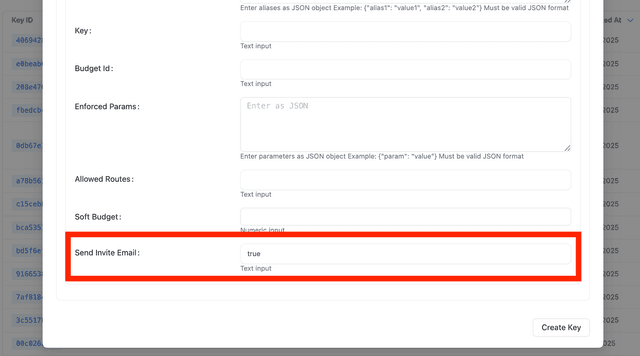
On the Create Key Modal, Select Advanced Settings > Set Send Email to True.
3. Proxy API Key Rotated for User
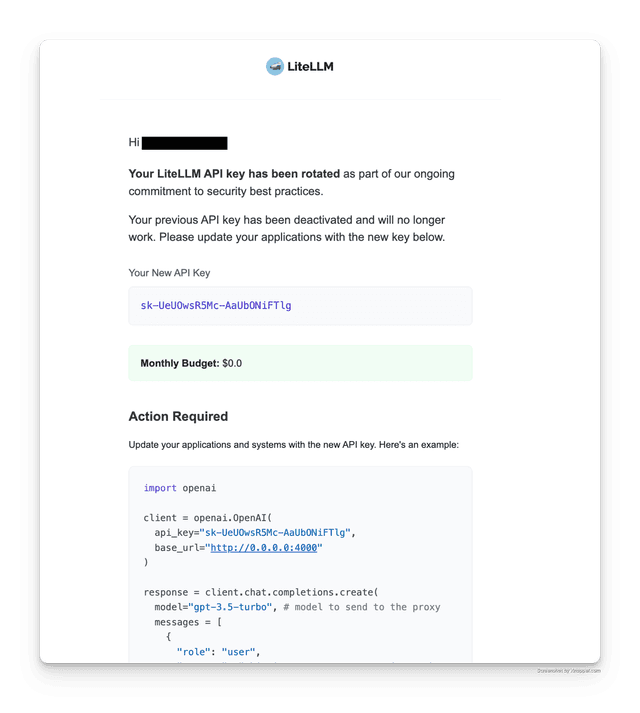
This email is sent when you rotate an API key for a user on LiteLLM Proxy.
How to trigger this event
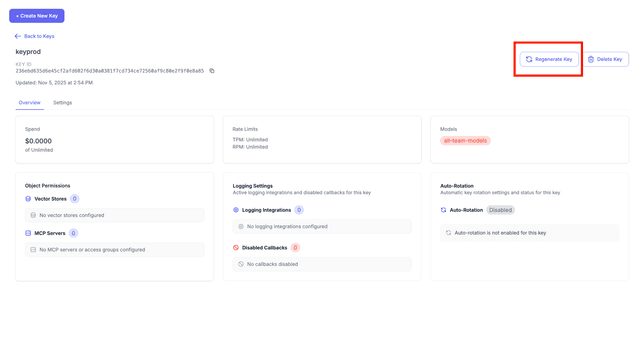
On the LiteLLM Proxy UI, go to Virtual Keys > Click on a key > Click "Regenerate Key"
Ensure there is a user_id attached to the key. This would have been set when creating the key.
After regenerating the key, the user will receive an email notification with:
- Security-focused messaging about the rotation
- The new API key (or a placeholder if
EMAIL_INCLUDE_API_KEY=false) - Instructions to update their applications
- Security best practices
Email Customization
Customizing Email Branding requires a LiteLLM Enterprise license. Start a free 30-day trial or book a demo. See what Enterprise includes.
LiteLLM allows you to customize various aspects of your email notifications. Below is a complete reference of all customizable fields:
| Field | Environment Variable | Type | Default Value | Example | Description |
|---|---|---|---|---|---|
| Logo URL | EMAIL_LOGO_URL | string | LiteLLM logo | "https://your-company.com/logo.png" | Public URL to your company logo |
| Support Contact | EMAIL_SUPPORT_CONTACT | string | support@berri.ai | "support@your-company.com" | Email address for user support |
| Email Signature | EMAIL_SIGNATURE | string (HTML) | Standard LiteLLM footer | "<p>Best regards,<br/>Your Team</p><p><a href='https://your-company.com'>Visit us</a></p>" | HTML-formatted footer for all emails |
| Invitation Subject | EMAIL_SUBJECT_INVITATION | string | "LiteLLM: New User Invitation" | "Welcome to Your Company!" | Subject line for invitation emails |
| Key Creation Subject | EMAIL_SUBJECT_KEY_CREATED | string | "LiteLLM: API Key Created" | "Your New API Key is Ready" | Subject line for key creation emails |
| Key Rotation Subject | EMAIL_SUBJECT_KEY_ROTATED | string | "LiteLLM: API Key Rotated" | "Your API Key Has Been Rotated" | Subject line for key rotation emails |
| Include API Key | EMAIL_INCLUDE_API_KEY | boolean | true | "false" | Whether to include the actual API key in emails (set to false for enhanced security) |
| Proxy Base URL | PROXY_BASE_URL | string | http://0.0.0.0:4000 | "https://proxy.your-company.com" | Base URL for the LiteLLM Proxy (used in email links) |
HTML Support in Email Signature
The EMAIL_SIGNATURE field supports HTML formatting for rich, branded email footers. Here's an example of what you can include:
<p>Best regards,<br/>The LiteLLM Team</p>
<p>
  <a href='https://docs.litellm.ai'>Documentation</a> |
  <a href='https://github.com/BerriAI/litellm'>GitHub</a>
</p>
<p style='font-size: 12px; color: #666;'>
  This is an automated message from LiteLLM Proxy
</p>
Supported HTML features:
- Text formatting (bold, italic, etc.)
- Line breaks (
<br/>) - Links (
<a href='...'>) - Paragraphs (
<p>) - Basic inline styling
- Company information and social media links
- Legal disclaimers or terms of service links
Environment Variables
You can customize the following aspects of emails through environment variables:
# Email Branding
EMAIL_LOGO_URL="https://your-company.com/logo.png"  # Custom logo URL
EMAIL_SUPPORT_CONTACT="support@your-company.com"     # Support contact email
EMAIL_SIGNATURE="<p>Best regards,<br/>Your Company Team</p><p><a href='https://your-company.com'>Visit our website</a></p>"  # Custom HTML footer/signature

# Email Subject Lines
EMAIL_SUBJECT_INVITATION="Welcome to Your Company!"  # Subject for invitation emails
EMAIL_SUBJECT_KEY_CREATED="Your API Key is Ready"    # Subject for key creation emails
EMAIL_SUBJECT_KEY_ROTATED="Your API Key Has Been Rotated"  # Subject for key rotation emails

# Security Settings
EMAIL_INCLUDE_API_KEY="false"  # Set to false to hide API keys in emails (default: true)

# Proxy Configuration
PROXY_BASE_URL="https://proxy.your-company.com"      # Base URL for the LiteLLM Proxy (used in email links)
Security: Hiding API Keys in Emails
For enhanced security, you can configure LiteLLM to not include actual API keys in email notifications. This is useful when:
- You want to reduce the risk of key exposure via email interception
- Your security policy requires keys to only be retrieved from the secure dashboard
- You're concerned about email forwarding or storage security
When disabled, emails will show: [Key hidden for security - retrieve from dashboard] instead of the actual API key.
Configuration:
# Hide API keys in emails (enhanced security)
EMAIL_INCLUDE_API_KEY="false"

# Include API keys in emails (default behavior)
EMAIL_INCLUDE_API_KEY="true"  # or omit this variable
Behavior:
| Setting | Key Created Email | Key Rotated Email |
|---|---|---|
true (default) | Shows actual sk-xxxxx key | Shows actual sk-xxxxx key |
false | Shows placeholder message | Shows placeholder message |
Users can always retrieve their keys from the LiteLLM Proxy dashboard.
HTML Support in Email Signature
The EMAIL_SIGNATURE environment variable supports HTML formatting, allowing you to create rich, branded email footers. You can include:
- Text formatting (bold, italic, etc.)
- Line breaks using
<br/> - Links using
<a href='...'> - Paragraphs using
<p> - Company information and social media links
- Legal disclaimers or terms of service links
Example HTML signature:
<p>Best regards,<br/>The LiteLLM Team</p>
<p>
  <a href='https://docs.litellm.ai'>Documentation</a> |
  <a href='https://github.com/BerriAI/litellm'>GitHub</a>
</p>
<p style='font-size: 12px; color: #666;'>
  This is an automated message from LiteLLM Proxy
</p>
Default Templates
If environment variables are not set, LiteLLM will use default templates:
- Default logo: LiteLLM logo
- Default support contact: support@berri.ai
- Default signature: Standard LiteLLM footer
- Default subjects: "LiteLLM: {event_message}" (replaced with actual event message)
Template Variables
When setting custom email subjects, the only supported template variable is \{event_message\}, which is replaced with the event message (for example "Welcome to LiteLLM Proxy" or "API Key Created"). Any other placeholder, such as \{company_name\}, causes a KeyError when the email is built and the email is not sent. Use plain text for anything else:
# Examples of template variable usage
EMAIL_SUBJECT_INVITATION="Welcome to Acme! \{event_message\}"
EMAIL_SUBJECT_KEY_CREATED="Your Acme API Key"
FAQ
Why do I see "http://0.0.0.0:4000" in the email links?
The PROXY_BASE_URL environment variable is used to construct email links. If you are using the LiteLLM Proxy in a local environment, you will see "http://0.0.0.0:4000" in the email links.
If you are using the LiteLLM Proxy in a production environment, you will see the actual base URL of the LiteLLM Proxy.
You can set the PROXY_BASE_URL environment variable to the actual base URL of the LiteLLM Proxy.
PROXY_BASE_URL="https://proxy.your-company.com"